
A fast, good-looking Minecraft launcher that makes mods, modpacks and accounts simple.
Play any version, install mods with one click, and keep all your worlds in one place — without messing with files.
Spectra Launcher is a free program for your computer that starts Minecraft for you. Think of it as the front door to the game.
Instead of editing files or copying .jar mods by hand, you click a button and Spectra does the boring parts:
- 📦 Keeps each modpack in its own tidy box (called an instance), so your setups never clash.
- 🔌 Installs mods, shaders and texture packs straight from the internet — no manual downloads.
- 👤 Logs you in with your Microsoft (Xbox) account, or lets you play offline.
- ☕ Finds and installs the correct Java version automatically. You never have to think about it.
It works on Windows and is built to feel quick and modern.

The home screen — all your Minecraft setups in one place. Hit Play to jump back into your last game.
An instance is a self-contained copy of Minecraft — its own version, its own mods, its own worlds. Want a vanilla world and a heavy modpack? Keep them as separate instances and they'll never interfere with each other.
- Create, copy, rename or delete instances in a couple of clicks.
- Group your favorites so the ones you play most stay at the top.
- Supports every popular mod loader: Vanilla, Fabric, Quilt, Forge and NeoForge.
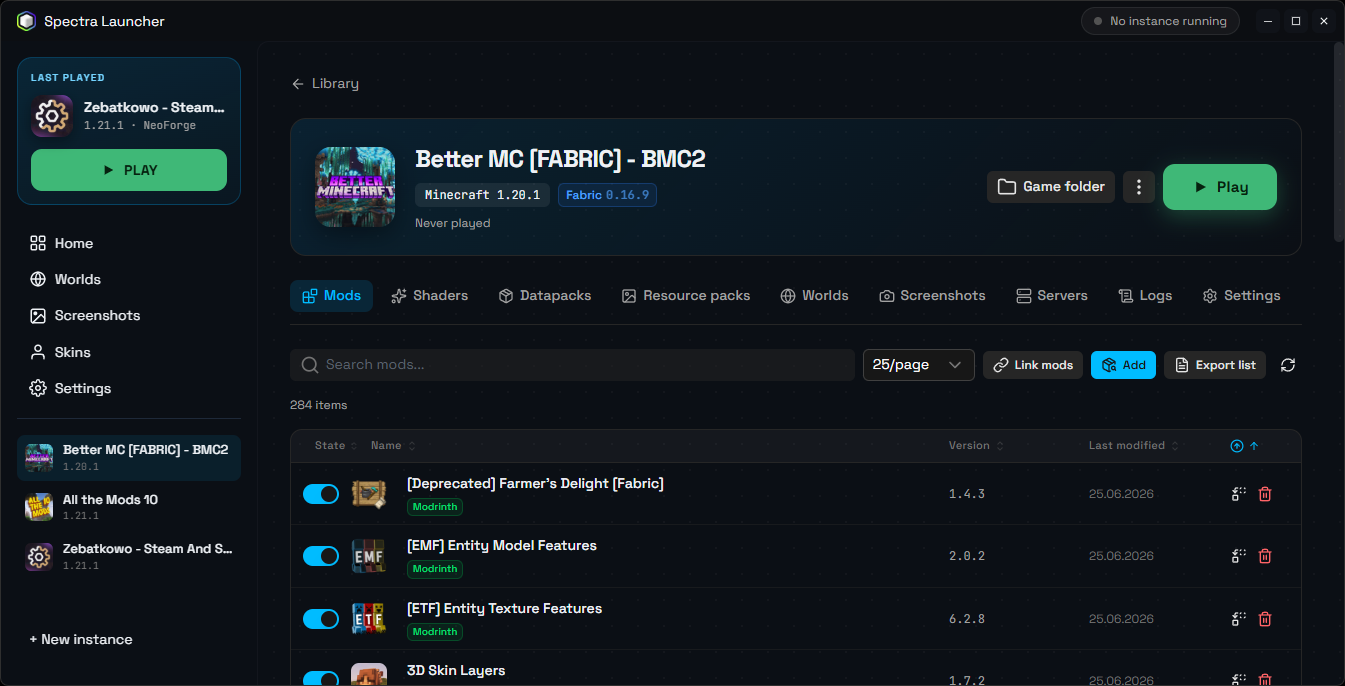
Open an instance to see its mods, shaders, worlds and more — each with a simple on/off switch.
Browse thousands of mods, shaders and resource packs from Modrinth and CurseForge right inside the launcher. Find what you want, click Install, and Spectra grabs everything it needs — including any required dependencies.
- Turn mods on or off without deleting them.
- Spectra checks your installed mods for available updates automatically.
- Install full modpacks (like All the Mods or Better MC) in one go.
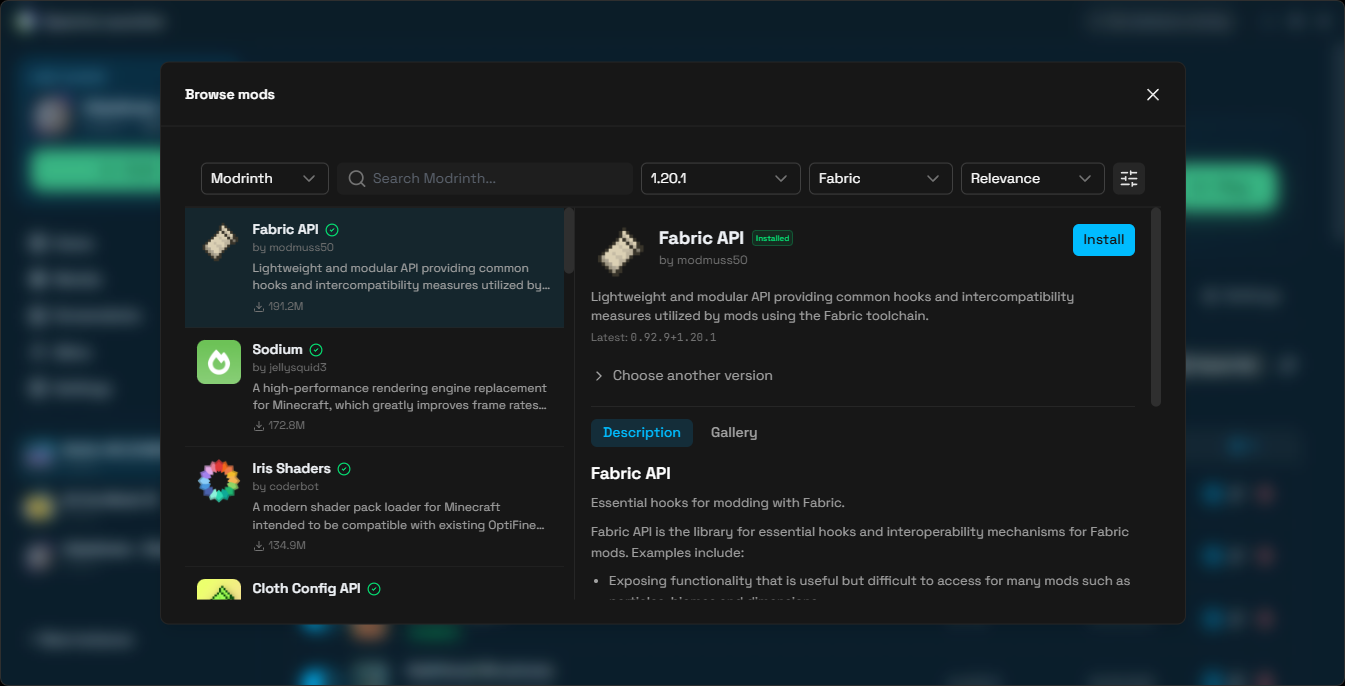
Search Modrinth without leaving the launcher. Pick a mod, choose a version, click Install.
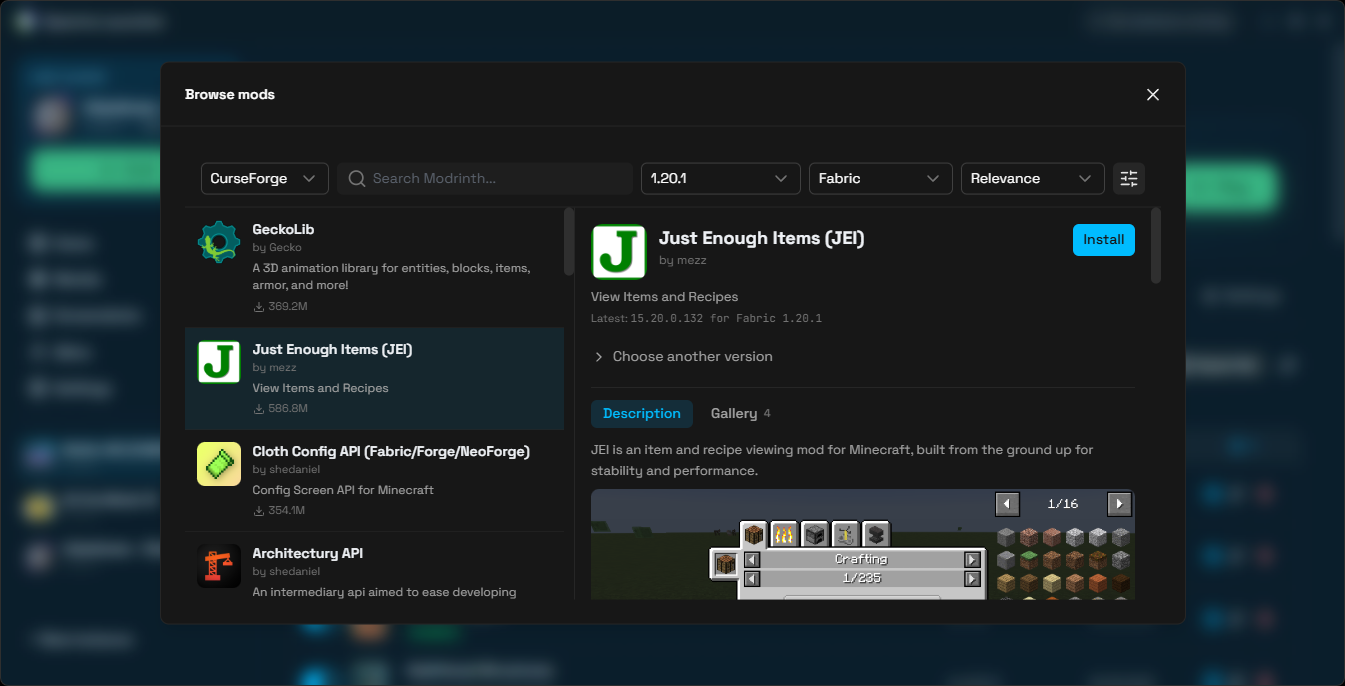
Prefer CurseForge? Switch the source with one dropdown and search there instead.
No more digging through folders. Spectra gathers your stuff into easy tabs:
- Worlds — see every save across all your instances and jump straight into one.
- Screenshots — every in-game photo you've taken, in one gallery.
- Skins — preview your character in 3D, save multiple skins, switch capes, and apply them instantly.
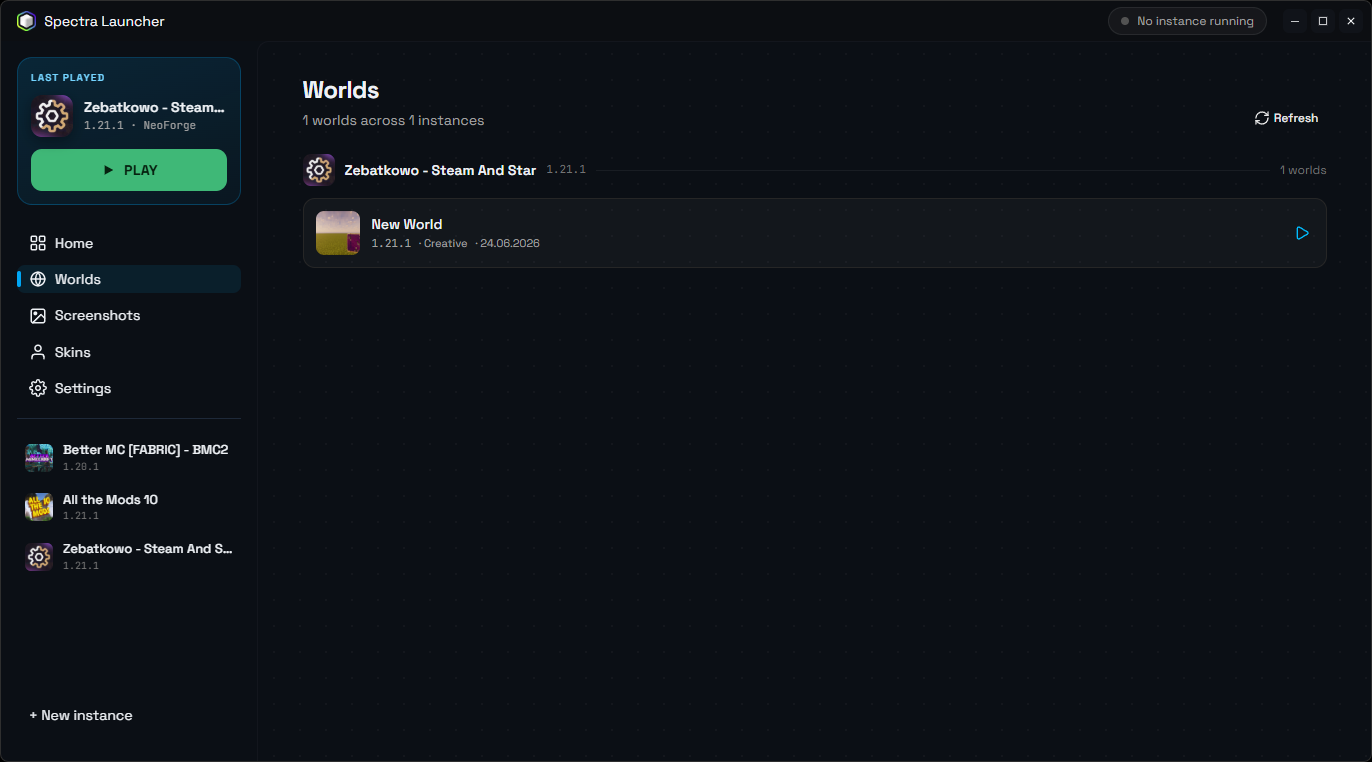
All your worlds, gathered from every instance, ready to play with one click.
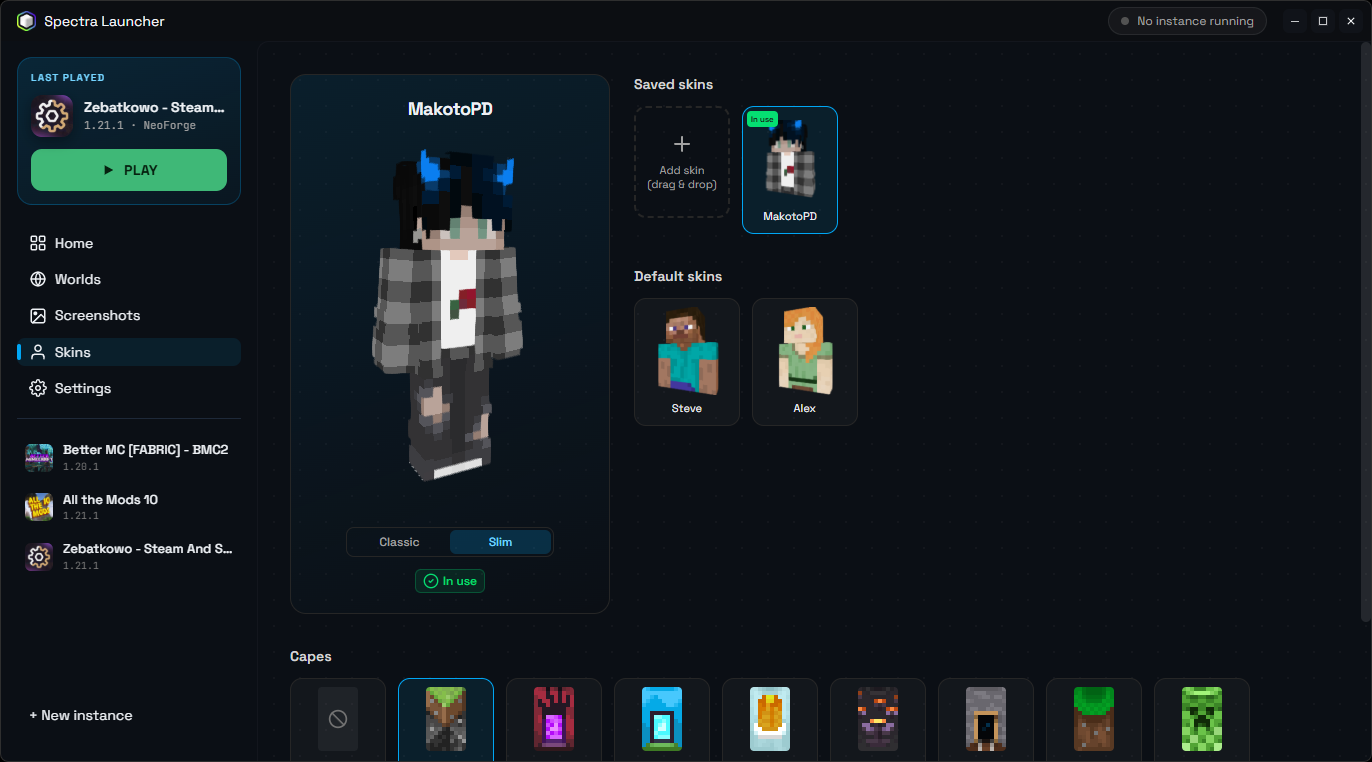
Try on skins and capes with a live 3D preview before you apply them.
- Quick Play (Minecraft 1.20+) — launch straight into a specific world or server.
- Server list — check if your favorite servers are online, see player counts and ping, right from the launcher.
- Crash help — if the game crashes, Spectra finds the crash report for you and lets you share it in one click for help.
- Live logs — watch what the game is doing in real time.
- Discord status — show friends what you're playing (optional).
- Playtime tracking — see how long you've spent in each instance.
- Languages — available in English and Polish.
Pick a theme (Dark, pure-black OLED, or a gold "Zębatkowo" look), choose an accent color, and the whole launcher updates to match.
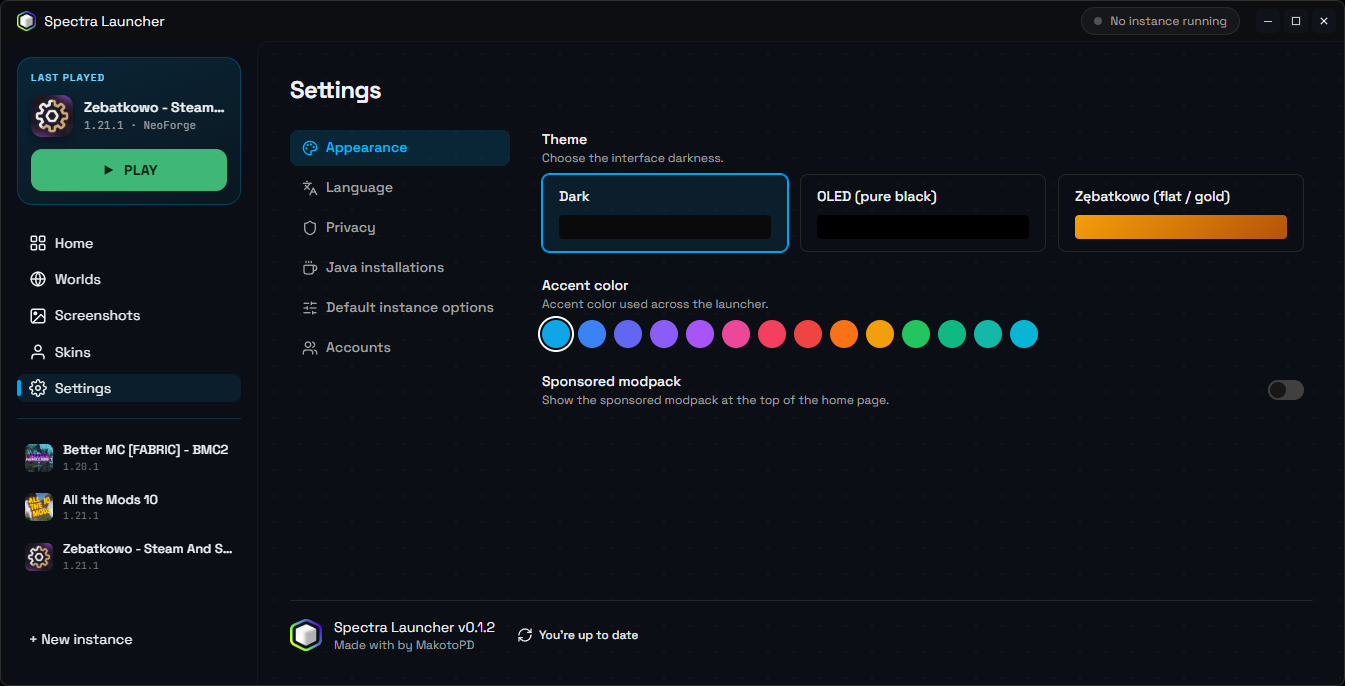
Themes and accent colors in Settings — tweak the look in seconds.
Every instance has its own settings: rename it, switch the mod loader, adjust how much memory (RAM) it gets, set custom Java options, or duplicate it as a backup before you experiment.

Per-instance settings — change the version, memory, Java and more without touching the rest of your setups.
Already use Prism, CurseForge or the Modrinth app? You can import your existing instances straight into Spectra. You can also export any instance as a backup (.mrpack or .zip) to share with friends or keep safe.
- Download the latest version from the GitHub Releases page.
- Install and open Spectra Launcher.
- Sign in with your Microsoft account (or add an offline account).
- Click New instance, pick a Minecraft version and a mod loader, and you're ready.
- Press Play. Spectra downloads everything it needs the first time — after that, launching is instant.
💡 First launch of a new instance can take a minute while files and Java download. Later launches are much faster.
Windows says "Windows protected your PC" (SmartScreen)
This warning appears for new apps that aren't yet code-signed — it doesn't mean anything is wrong. To continue:
- Click More info.
- Click Run anyway.
We're working on code signing to remove this warning in future releases.
Windows Defender blocked or removed the app
- Open Windows Security → Virus & threat protection.
- Click Protection history.
- Find Spectra-Launcher → Actions → Allow.
Optionally, add an exclusion for the folder where you installed Spectra.
macOS says the app is "damaged and can't be opened"
This is a normal macOS check for apps not signed with a paid Apple Developer certificate. Make sure the app is in your Applications folder, then run this in Terminal:
sudo xattr -cr /Applications/Spectra-Launcher.appStay safe — only download from official sources
- Always download from the official GitHub Releases page.
- Verify the SHA256 checksum listed in the release notes if you want to be extra sure.
- You log in directly with Microsoft/Xbox — Spectra never sees your password.
- Mods and modpacks come from trusted providers (Modrinth and CurseForge).
- Your accounts, settings and instances are stored only on your computer.
- Optional extras (Discord status, playtime tracking) are off by default, and crash reports are only ever sent when you choose to share one.
How Spectra is built (tech stack)
Spectra is a desktop app built with Tauri v2 — a Rust backend paired with a web-based UI.
- Backend (Rust 🦀):
lyceris(Minecraft install/launch/auth),tokio(async),reqwest(networking), plusserde,zip,flate2,fastnbt(world data) andsysinfo(RAM detection). - Frontend (TypeScript 📘): Nuxt 4 (Vue 3) with
@nuxt/ui+ TailwindCSS,Piniafor state,tiptapeditor,@nuxtjs/i18nfor languages, andskinview3dfor the 3D skin preview.
Where Spectra stores your files
By default everything lives in your OS data folder under SpectraLauncher (e.g. %APPDATA%\SpectraLauncher on Windows). Set the SPECTRA_DATA_DIR environment variable to make a portable install.
<data root>/
├── launcher.json          # Global settings
├── accounts.json          # Saved accounts & tokens
├── instances/             # Each instance and its own Minecraft folder
│   └── <instance-id>/
│       ├── instance.json  # Name, version, loader, overrides
│       ├── instance.lock  # Prevents launching the same instance twice
│       ├── content.json   # Installed mods/content index
│       └── minecraft/     # The actual game files
├── runtimes/              # Shared Java versions (managed automatically)
├── skins/                 # Saved skins
├── cache/                 # Temporary files, icons, manifests
└── logs/                  # Launcher logs