FlashCMD is a desktop shortcut manager for Windows and macOS. It helps you save, organize, and launch ordered groups of commands or programs without retyping them every time.
Current release: 0.2.0

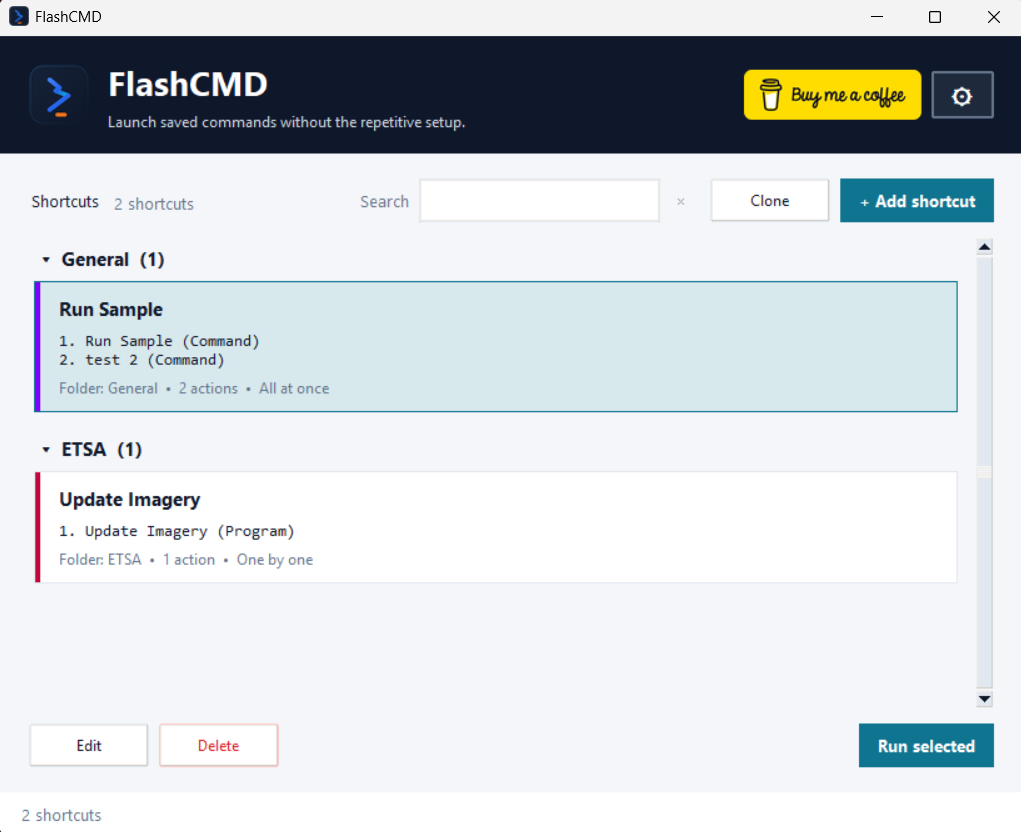
- Save each shortcut as one or more named Command Line or Program/Script actions
- Reorder actions and run them One by one or All at once
- Clone complete shortcuts or individual actions to create variations quickly
- Organize shortcuts into collapsible folders
- Search, edit, delete, and run saved shortcuts quickly
- Switch to a compact name-and-color card view beside Search when more rows are needed
- Import and export complete ordered shortcuts as Task Scheduler XML
- Restore the app from the tray or background using a configurable hotkey
- Keep a single running instance so repeated launches restore the same window
Download the latest FlashCMD release for Windows or macOS from GitHub Releases.
- Optional color is now configured per action rather than per shortcut
- Windows Terminal command tabs use each action's own color in both One by one and All at once runs
- Shortcut cards use the first colored action in execution order as their accent
- Legacy 0.1.0 shortcut colors are projected onto uncolored actions without rewriting files merely because they were loaded
- The Windows MSI offers an unchecked, installer-only Add FlashCMD to startup option and preserves that choice across upgrades and repairs
- Build, installer, and required branding inputs now live under
code/so a clean checkout contains the supported Windows and macOS build paths
The Windows .msi is the recommended package. Setup includes an unchecked
Add FlashCMD to startup option. This is an installer choice; FlashCMD does
not add a startup toggle to app Settings. The existing final-page option to open
FlashCMD immediately remains available.
The versioned Windows .exe is portable and does not add a startup entry. On
macOS, open the .dmg and drag FlashCMD into Applications.
- Select Add shortcut and enter its name, folder, and execution mode.
- Add one or more actions. Each action requires a name and can be either Command Line or Program/Script, with an optional color.
- Use Move up and Move down to set the execution order.
- Save the shortcut, select its card, and choose Run.
The status area shows launch and completion progress. When actions fail, FlashCMD presents one summary containing every failed action and its available exit or launch details; successful actions are not discarded.
- Windows 10/11
- macOS
Each shortcut includes a name, folder, execution mode, and an ordered list of actions. Every action has its own name and optional color, and can be either:
- Command Line — a command and optional Start in working directory
- Program/Script — a program or script path, optional arguments, and optional Start in working directory
One by one waits for each action's real child process to finish before starting the next action. A failed action is reported but does not prevent later actions from running. All at once launches every action without waiting between launches, then monitors all of them. Completion means the immediate child finished; a command that deliberately starts or daemonizes another process may therefore be considered complete while that detached process is still running.
Task Scheduler XML import reads every Exec entry in order and creates one
Program/Script action for each entry. An Exec id becomes the action name when
present; otherwise FlashCMD uses Action 1, Action 2, and so on.
Task Scheduler XML export writes every shortcut action in order. Program/Script
actions map directly to Exec entries. Command Line actions are exported as
cmd.exe /d /c entries. Task Scheduler runs the exported actions one by one, so
an All at once FlashCMD shortcut is exported using sequential task semantics.
On Windows, when Windows Terminal (wt.exe) is available, every Command Line
action in a run gets its own tab in one newly created, uniquely identified
window. Tabs use the action name, suppress application-title replacement, and
use that command action's color when one is selected. Parallel command tabs are submitted
together so they join the same new window. Program/Script actions always launch
as direct external processes rather than Terminal tabs.
If Windows Terminal is unavailable or its initial launch fails, Command Line actions remain usable in separate native console windows. One-window grouping, tab titles, title suppression, and tab colors are unavailable in this fallback. An accepted Windows Terminal launch that does not start in time is reported as a timeout and is not retried, avoiding accidental duplicate commands.
On macOS, both execution modes and direct Program/Script actions are supported. Command Line actions open through Terminal, but FlashCMD does not guarantee Windows-style one-window grouping, per-tab colors, or title suppression there. Closing FlashCMD stops result monitoring but does not terminate commands, Terminal windows, or direct programs that were already launched.
On Windows, FlashCMD can minimize to the tray. In Settings, you can also choose your terminal or shell, theme, accent color, and restore hotkey.
FlashCMD stores your personal shortcut data per user:
- Windows:
%LOCALAPPDATA%\FlashCMD\shortcuts.json - macOS:
~/Library/Application Support/FlashCMD/shortcuts.json
On Windows, FlashCMD can still read older data from legacy FlashCmd and
QuickCMD locations, but new saves go to the current FlashCMD path.
Existing single-action shortcut records are projected as one named action in memory and are not rewritten merely because FlashCMD loaded them. Editing and successfully saving that shortcut migrates only that record to the current multi-action format; cancelling an edit or saving another shortcut leaves the legacy record unchanged.
A legacy 0.1.0 top-level shortcut color is projected in memory onto each action that lacks its own valid color. The card and Windows Terminal tabs therefore keep their prior appearance. Successfully saving that shortcut through the current editor stores the projected colors on actions and removes the top-level color.
Install build requirements with python -m pip install -r code/requirements-build.txt.
On Windows, run code/scripts/build_windows.ps1 with PyInstaller and WiX v4
available. On macOS, run bash code/scripts/build_macos.sh; icon generation and
packaging require the standard macOS sips, iconutil, signing, and notarization
tools as applicable. Generated files remain under ignored build/, dist/, and
release/ artifact paths.
Your personal shortcuts.json and backup files are private local data. They are
ignored by Git and should never be uploaded or shared publicly.
Settings includes Download shortcuts to create a JSON backup and Upload shortcuts to restore one. Uploaded files are validated before FlashCMD warns that the current shortcut collection will be replaced. Nothing is replaced unless that confirmation is accepted.
- There is no cloud sync
- There is no automatic updater
- Linux is not packaged at this time
- FlashCMD does not terminate external commands or programs when the app closes
If you are using the source repository, keep private shortcut files, generated build output, and internal documentation out of public commits.
If FlashCMD is useful to you, you can support it here:
