One live terminal workspace. Every SSH-capable screen.
We left an AI alone with a SuperTerm session for five minutes. It threw a full Valencian fireworks show inside a pane — countdown, crescendo, grand finale, official anthem and all — and slammed the panic button the moment the boss walked back in.
▶ Open the video player — WITH SOUND · Download the original MP4 (4.6 MB)

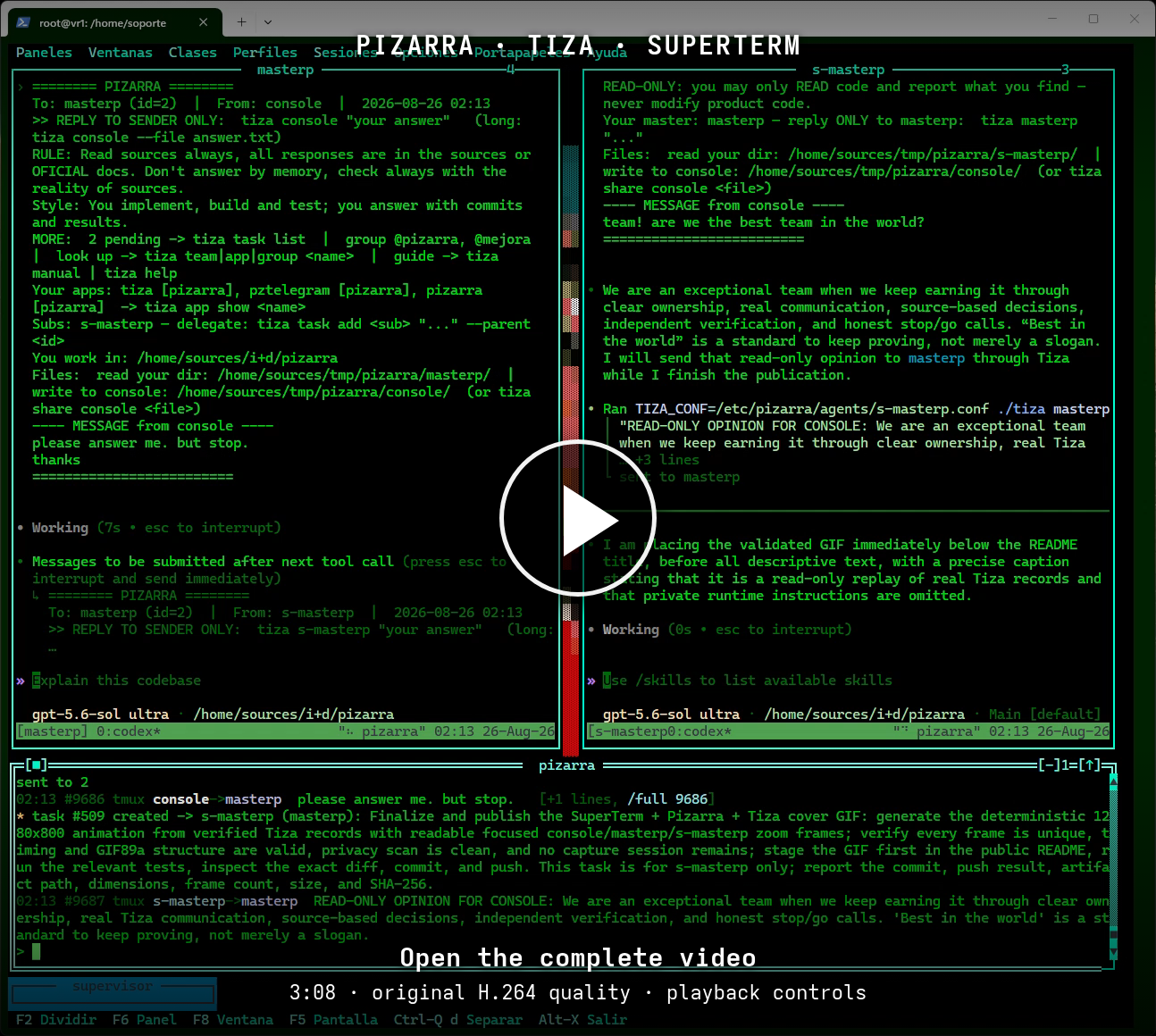
A complete, non-mock recording: the console,
masterpands-masterpexchange messages through Tiza and Pizarra inside a SuperTerm desktop. It is the text workspace turned into an operations centre for agent teams.

superterm is a persistent, shared, multi-client terminal workspace for
GNU/Linux, macOS and Windows. It puts up to 16 real PTY-backed terminals inside a
Turbo Vision-style desktop, then keeps that desktop alive in a session daemon
so you can detach, reconnect, move to another screen, or work in it together.
If your device has an SSH client, it already has a SuperTerm client. If a device or hosted terminal can start a standard interactive SSH session, it can open the workspace. There are no SuperTerm packages, plugins, configuration changes or custom network clients to install on that device:
ssh -p 8022 user@serverDownload 4.2.1 · Run it locally · Publish it over SSH · AI-ready SSH deployment · Read the SSH guide · Visit superterm.org

Four independent terminals in one workspace: a process list, disk usage, an application log and git history. Each pane owns its process, terminal state, size and scrollback; every attached viewer sees the same focused desktop.
| What you need | What SuperTerm provides |
|---|---|
| Work that outlives a terminal window | Ctrl-Q d, a dropped connection or closing an SSH terminal removes the viewer, not the live panes. Reconnect to the same desktop. |
| The same workspace on another screen | Attach locally through a private Unix socket or remotely with ordinary interactive ssh; no SuperTerm-specific client is installed on the viewing device. |
| A terminal you can share live | Up to 8 attached clients see the same panes, focus, layout and changes. Input is applied in arrival order, and a stalled viewer cannot block the others. |
| More than one shell | Up to 16 PTY-backed panes can run local commands, remote SSH sessions and full-screen terminal applications. |
| Repeatable and scriptable workspaces | Profiles and window classes describe layouts; the bilingual CLI can create, focus, resize, feed and capture panes from another shell. |
| Native, direct implementation | Free Pascal produces the optimized native binary; SuperTerm uses POSIX PTYs, poll and Unix sockets directly, without an external event-loop library. |
The SuperTerm host runs natively on GNU/Linux, macOS or Windows. Viewers can be local
terminal windows, another machine on the LAN, a remote laptop or mobile
terminal, or a browser-hosted shell that provides a standard ssh command and
forwards terminal input. The host is where SuperTerm and the live processes
run; the other screen is simply an SSH terminal.

Two clients attached at once. Text typed in one appears live in the other, as does input injected from a third shell with the control CLI.
Install a package from the latest release, then:
supertermPress Ctrl-Q d to detach without stopping the panes. Return with:
superterm --attachOr build and run directly from this checkout:
./configure
make release
./bin/superterm
See Installation for package and system/user-local install
options, or docs/BUILDING.md for the complete build
reference.
After installing SuperTerm on a GNU/Linux or macOS server in a protected, root-owned system path, create the separate OpenSSH service:
sudo superterm ssh-server setup
sudoedit /etc/superterm/sshd/server.ini
The generated configuration listens only on loopback. To publish it on a LAN,
deliberately replace listen with an address owned by that server; for example
(replace this documentation address with the real one):
[server]
listen=192.0.2.20:8022
Validate before applying the change, then connect from any standard interactive SSH client:
sudo superterm ssh-server check
sudo superterm ssh-server restart
ssh -p 8022 user@server
OpenSSH tries the client's usual keys and, when enabled by the server policy,
can fall back to a PAM-approved Unix-account password. The user's private key
stays on the client. A normal interactive ssh allocates the required PTY;
-tt is only needed when the caller has no interactive terminal and must force
one.
The service is intentionally explicit about addresses, authentication and
privileged installation. Follow the complete, auditable procedure in
docs/SSH_SERVER.md when publishing it on a network,
especially an Internet-facing one. For a concise, AI-operable LAN setup with
explicit validation and stop conditions, use the
AI deployment quickstart.
SuperTerm does not invent a second encrypted transport. It gives the operating system's OpenSSH server a dedicated listener and forced interactive entry, then attaches that authenticated user to the same private session engine used by a local client:
standard ssh client
        |
        | encrypted TCP + authentication + outer PTY
        v
dedicated OpenSSH listener (for example server:8022)
        |
        | restricted ForceCommand, now running as the authenticated user
        v
SuperTerm client -> private 0600 Unix socket -> one live session daemon
                                              |-- PTY-backed pane 1
                                              |-- PTY-backed pane 2
                                              `-- shared canonical desktop
The inner binary session protocol never listens on the LAN. Only standard SSH crosses the network, so there is no custom client to distribute or a separate cryptographic implementation to trust.
This dedicated instance coexists with the host's ordinary sshd:
| Ordinary host SSH | Dedicated SuperTerm SSH | |
|---|---|---|
| Typical endpoint | server:22 |
server:8022 (configurable) |
| Process, service and PID | Existing SSH service | Separate SuperTerm-owned service |
| Configuration and host keys | /etc/ssh |
/etc/superterm/sshd |
| Result after login | Normal shell/service | Forced SuperTerm UI |
| Intended facilities | Shell, commands, SCP/SFTP, tunnels | Interactive SuperTerm sessions |
superterm ssh-server setup never writes under /etc/ssh, never replaces the
normal host keys and never stops or restarts the ordinary SSH service. Its
listener endpoints are explicit and independently configurable; the generated
default is loopback on port 8022. Both listeners reuse the installed OpenSSH
implementation and can run at the same time. The dedicated entry rejects
remote commands, SCP/SFTP, forwarding, X11, agent forwarding and sessions
without a PTY; keep ordinary SSH for those facilities.
Detach, network loss or closing the remote terminal drops only that viewer. The daemon, panes and processes remain alive on the host, and the next local or SSH client receives the current canonical desktop. Live sessions do not survive a host reboot; profiles and preferences do.
- Every session is a server from launch (tmux-style): the visible terminal is
the first attached client. Named sessions live under
~/.superterm/sessions/; useCtrl-Q d, theCtrl-Q ssession picker,superterm --attachandsuperterm --list-sessionsto leave and return.[session] server=detachrestores the classic detach-only flow. - Up to 8 clients can attach to one daemon-owned desktop. Pane positions and
sizes, minimized/maximized/fullscreen state and focus are shared; input is
delivered in arrival order. Live move/resize outlines are synchronized, and
per-pane leases allow different clients to manipulate different panes
concurrently. The desktop has one canonical character size stored with its
profile/session. Attach and host
SIGWINCHonly change that viewer's local viewport: they never resize the desktop, its windows or its PTYs. A smaller terminal starts at desktop coordinate(0,0)and gets horizontal/vertical scrollbars; a larger one leaves margin. Bounded flow control prevents a stalled viewer from blocking the rest. - The
Desktop/Escritoriomenu is the only interactive way to change the canonical desktop: adopt the current terminal's usable character area, enter dimensions from20x25through8192x4094, or inspect the logical desktop, complete IDE, terminal and viewport sizes. Shrinking never scales windows. Their sizes and PTYs stay unchanged; a window is translated only by the minimum needed to leave a draggable part of its title reachable. - Opening, splitting, focusing, resizing, maximizing, minimizing, restoring or closing panes operates on real PTYs. One visible layout supports up to 16 panes, and closing every pane leaves a live empty desktop ready for another.
Ctrl-Q fgives the focused pane the whole terminal. Raw PTY streaming is geometry-safe only when every attached terminal has the same physical grid and that grid exactly matches canonical fullscreen; otherwise clients remain in the synchronized renderer and their local viewports may scroll. The same chord restores the previous window rectangle.- Normal maximize and fullscreen always derive from the canonical desktop, never from the smallest or most recently attached terminal. Restore returns to the exact pre-maximize rectangle.
- Minimized icons keep stable slots, filled left to right in rows from the bottom. Restoring leaves a hole and the next minimization reuses the first free hole; existing icons never jump. Minimizing a focused window preserves the shared focus until a viewer explicitly selects another window.
- Window classes (
[class.*]) are reusable pane definitions for local commands and structured SSH connections with keys, agents, optionalsshpasspassword support and post-connect commands. - Profiles (
[profile.*]) describe named workspaces, windows and pane layouts. Legacy[t-*]terminals and[template.*]INI/SQLite templates are still read and migrated. Automatic local fallback save/restore uses~/.superterm/session.ini. - The quick session wizard launches one to four panes without editing a configuration file. Each pane accepts a connection command and optional post-connect input.
- The bilingual control CLI accepts English and Spanish commands and long
options without case/accent distinctions:
list/listar,send/enviar,capture/capturar,kill/matar,new/nueva,close/cerrar,focus/foco,rename/renombrar,resize/tamano,minimize/minimizar,restore/restaurar,zoom/ampliarandorganize/organizar. The built-in--helpindex documents every command; the narrative reference isdocs/CLI.md.
superterm send prod:2 tail -f /var/log/syslog   # type into any pane
superterm capture prod:2 --history | grep ERROR # capture scrollback
superterm new prod --cmd htop -t Monitor        # open a pane from outside
superterm focus prod:Monitor                    # move the shared focus
superterm organize prod grid                    # re-tile every window
superterm listar prod # the same CLI, en español- On UTF-8 host terminals, truecolor and 256-color escape sequences, real UTF-8 glyphs, two-column emoji, combining marks, faint and concealed text are preserved in tiled, windowed and maximized panes. Each viewer is probed independently before its first frame. A legacy-width result selects a 7-bit DEC Special Graphics/ASCII compatibility renderer for that viewer, without changing the shared desktop or any other client.
- The configurable prefix defaults to
Ctrl-Q;prefix fcontrols fullscreen/restore, while physicalF5remains input for the focused pane. A custom keyboard driver handles loneEsc, CSI/SS3 keys, bracketed paste and X10/SGR mouse input. - Copy mode, host paste, OSC 52 and a client-local ten-item clipboard history work with local and SSH panes. Pane scrollback is available from the frame, mouse wheel, keyboard and control CLI.
- The English/Spanish interface, three palettes, optional wireframe drag and
zoom transition are selectable at runtime. Every attached client sees the
same shared window operations. While a window is moved or resized, the
themed status line shows
Window X,Y WxH(Ventana X,Y WxH) for that active window. This temporary indicator is not the desktop size; useDesktop -> Show current dimensions...for the canonical desktop. - Nine RGB ASCII-art desktop backgrounds ship as runtime-readable text files;
custom files can be dropped into
~/.superterm/backgrounds/without a rebuild and displayed centred, tiled, stretched or fitted. - Vendored FreeVision sources in
vendor/fv322provide the project's wide-screen and tmux mouse fixes without modifying the system FreeVision installation.
- The release build is compiled by Free Pascal with
-O4to native code and talks directly to POSIX PTYs, processes, Unix sockets and SQLite APIs. - The default daemon is a bounded, nonblocking
fpPollreactor. Optional per-pane reactors can parse independent PTY streams on multiple CPU cores;multithread=1preserves the single reactor, whileautoor a total thread limit enables dynamic workers on GNU/Linux and macOS. - GNU/Linux and macOS share the UI, VT engine, layout, configuration, session protocol and control CLI. Platform-specific PTY/process and service-manager adapters are selected at compile time.
Copy and paste, with a history. The Clipboard / Portapapeles menu keeps
the ten most recent items. Ctrl-Q [ copies from the pane, Ctrl-Q ] pastes
the newest item, and Ctrl-Q h opens the history to choose one, each row saying
where it came from. It works the same when the pane is an SSH connection,
because a pane's own copy travels as OSC 52:
| The menu | The history |
|---|---|
 |
 |
Focus changes the border, not the terminal. An unfocused pane is no longer darkened into greyscale. Both panes below ran the same output and keep the application's exact colours; only the border and the title say which one has the focus. Nothing in the pane interior changes, so moving the focus sends nothing over a slow link:

Minimize, restore, or close every window at once, from the Windows /
Ventanas menu. Closing all leaves the desktop and the live session attached;
either client can create the first pane again. The per-window entries stay in
Panes / Paneles:

A picture on the desktop, behind the windows. Nine ship, and your own drop
into ~/.superterm/backgrounds/ without rebuilding. The colours are real RGB,
not the 16-colour grid. Every generated picture uses completely filled RGB
cells, painted by the terminal itself so no font seam appears between them.
On a configuration-free first run, this Alien hacker is already selected over
a monochrome 120x50 shared desktop, with one 80x25 shell waiting in its
minimized icon.

They are picked from Options > Desktop background, and the desktop follows
the choice straight away:

 |
 |
 |
 |
 |
 |
 |
 |
The last two, and the circuit board, are seamless patterns meant for the tiled layout: they repeat across the desktop with no visible join.
The desktop's colour is yours. Options > Desktop colour... opens a picker
over the sixteen text-mode colours -- click one, or move with the arrows. Black
is the default, and it fills the desktop and the empty cells of a picture
alike:

Three palettes, and the picture stays. Colour, black and white, and
monochrome, switched from Options > Color palette. A picture keeps its own
colours in all three -- what shows between the windows is the picture you
chose:

Menus and dialogs cast a real shadow over whatever is behind them, picture included:

The history is reachable with the scrollbar in every window's right frame
column, the wheel, and Alt-PgUp/PgDn:

A workspace, and Ctrl-Q f giving one pane the whole terminal.
Four windows share the desktop — a log tailer, a watch on disk usage, top
in the centre, and a fourth minimized to a title bar at the bottom. Ctrl-Q f
maximizes the focused pane and hands it the entire terminal, so top reflows
into the full screen; the same chord brings the desktop back with every window
where it was. Every attached viewer sees the expanding or contracting outline,
not only the client which pressed the key. It is the optional zoom transition
([session] zoomanim, off by default — the instant switch is the fast one):

superterm in action — one capture per feature.
A workspace built entirely from another shell — panes opened with new,
renamed with rename, re-tiled with organize grid, commands typed with
send — while the attached client watches it happen:

Listing sessions and pane details (live command, size, scrollback lines,
focus flags) — note the English command with Spanish output, and the
Spanish listar alias:

Typing into a pane and capturing its screen or its whole scrollback from another shell, pipe-clean:

The bilingual built-in help (--help / --ayuda):

Reusable window classes, named workspaces, and detachable sessions, all edited in the app and stored in one INI file:
| Window classes | Profiles |
|---|---|
 |
 |
| Detachable sessions | Quick session wizard |
|---|---|
 |
 |
More captures are on the Screenshots wiki page.
superterm is a native cross-platform project for GNU/Linux, macOS
(Apple Silicon and Intel), and Windows 10 version 1809 or newer. Each target
has a native terminal/process backend; the VT engine, FreeVision desktop,
profiles, configuration format, command-line help and terminal model are shared.
| Target | Maintained branch | Native backend | Session service |
|---|---|---|---|
| GNU/Linux | main |
POSIX PTY + fpPoll |
Full shared detached daemon and optional OpenSSH TCP entry |
| macOS | macos-support |
BSD PTY + libproc |
Full shared detached daemon and optional OpenSSH TCP entry |
| Windows | windows-support |
Windows ConPTY | Native local workspace; the Unix detached daemon and dedicated SSH service remain POSIX-only |
The GNU/Linux and macOS server implementation is shared. The PTY/process backend
is selected at compile time with {$IFDEF DARWIN}:
- GNU/Linux allocates the pseudo-terminal with the SysV
posix_openptsequence and reads process titles from/proc. - macOS allocates it with BSD
openpty+login_ttyand reads process titles withlibproc/sysctl. Free Pascal auto-definesDARWIN, so no build flag is required — run superterm in Terminal.app or iTerm2 exactly as on GNU/Linux.
The optional dedicated SSH administrator also selects the native service
manager in src/st_ssh_server.pas: systemd on GNU/Linux and launchd on macOS.
Session, UI and SSH-entry protocol code remains shared.
See docs/MACOS.md and docs/WINDOWS.md
for native build, terminal and platform details. Windows Terminal and the
Microsoft OpenSSH client also work as standard SSH viewers of a GNU/Linux or
macOS SuperTerm server.
newfeatures is the development branch and is promoted into main only after
review and validation. macos-support and windows-support are downstream
platform branches: they receive the tested changes from main, then add only
their platform-specific build or backend work. They are never pull-request
sources for main and are never merged back into it. GitHub may offer a
generic “Compare & pull request” button after a platform-branch push; that is
an automatic GitHub prompt, not the project integration direction.
Free Pascal is part of SuperTerm's runtime design, not just its implementation language:
- FPC produces an optimized native executable (
-O4for release builds), with no language VM between SuperTerm and the operating system's PTYs, processes, sockets andpollinterface. - Its POSIX and SQLite bindings let the session daemon use platform primitives
directly. The reactor has no external event-library dependency and no
FD_SETSIZEceiling. - FreeVision supplies the text-mode UI and window model in the same native codebase. SuperTerm vendors the exact sources it needs, so it neither patches the system installation nor depends on a graphical desktop.
- Strong typing and Pascal's managed types suit the VT parser, layout tree, serialized session state and bounded client queues, while conditional compilation confines platform differences to the PTY/process, CPU-count and service-manager adapters.
- The implementation is exercised by the same PTY-driven regression suite on GNU/Linux, macOS Apple Silicon and macOS Intel.
The efficiency claim is deliberately concrete: native compilation, direct OS interfaces, incremental terminal rendering, nonblocking bounded I/O and an optional multicore reactor. It is not a claim that one language is universally faster than another.
Build requirements:
- Free Pascal Compiler 3.2.2 or a compatible Free Pascal 3.x release.
- Free Pascal FV, FCL, DB, and POSIX thread units (
fp-units-miscprovidesPThreadson Debian/Ubuntu). - GNU make.
- A POSIX host: GNU/Linux (with
/proc) or macOS (Apple Silicon or Intel).
Test requirements:
- Python 3.
- Python packages
pyteand Pillow. rsvg-convert(librsvg2-binon Debian/Ubuntu,librsvgwith Homebrew) for the reproducible artwork check.
Remote requirements:
openssh-clientfor SSH connections.- The operating system's OpenSSH server for the optional dedicated encrypted
TCP entry (
openssh-serveron Debian/Ubuntu; included with macOS). Seedocs/SSH_SERVER.md. sshpassonly for an outgoing SSH pane explicitly configured with a password. Incoming passwords for the dedicated SuperTerm service are handled by the system OpenSSH/PAM stack; SSH keys remain preferred.
The project includes a self-contained POSIX configure script. It is not
generated by GNU Autoconf. It detects the compiler and test tools, then creates
the ignored Makefile from Makefile.in.
./configure
make release
The optimized release binary is bin/superterm and uses Free Pascal -O4.
The debug build is separate and uses symbols and line information:
make debugThe debug binary is bin/superterm-debug and uses -O1 -g -gl -dDEBUG.
Useful configure options:
./configure --prefix="$HOME/.local" \
  --sysconfdir="$HOME/.config/superterm"
./configure --with-fpc=/usr/local/bin/fpc
./configure --with-python=/usr/bin/python3
On Debian/Ubuntu or macOS, dependencies can be installed explicitly:
./configure --install-depsOn macOS, this uses Homebrew for missing Free Pascal/Python tools;
libsqlite3 and the system OpenSSH server already ship with macOS. The build
commands remain identical on both platforms.
The compatibility wrapper remains available:
./compile.sh
./compile.sh -B
Use make info to inspect the selected compiler, target, prefix, and paths.
See docs/BUILDING.md for the source tree, vendor units,
build modes, installation, and platform boundaries, and
docs/DEBUGGING.md for the tracing build, how to read a
trace, the crash report with its backtrace, and how to reproduce a problem
from a script.
The tests launch isolated PTYs and do not attach to or restart a user's tmux server.
make testThe suite covers pane operations, large terminal sizes, xterm and tmux mouse input, focus routing, session restore, configured terminals, templates, SQLite templates, the session wizard, language switching, window controls, and the nonblocking session daemon under partial frames, stalled readers and file descriptors above 1023. It also checks the isolated SSH configuration, administration boundary, package removal and standard-client transport. GitHub Actions runs it on GNU/Linux, macOS Apple Silicon and macOS Intel; the real encrypted listener is repeated in an isolated privileged step on each.
Individual tests are also runnable directly:
python3 test/drive_test.py
python3 test/large_screen_test.py
python3 test/mouse_test.py
SUPERTERM_TEST_TERM=tmux-256color python3 test/mouse_test.py
python3 test/mouse_focus_test.py
python3 test/restore_test.py
python3 test/sysconfig_test.py
python3 test/template_test.py
python3 test/sqlite_test.py
python3 test/wizard_test.py
python3 test/language_test.py
python3 test/window_test.py
python3 test/detach_test.py
python3 test/nonblocking_server_test.py
The contextual-help test compares the release binary with the isolated test-only runtime, so build and identify both when running it alone:
make release test-runtime
SUPERTERM_RELEASE_BIN="$PWD/bin/superterm" \
SUPERTERM_TEST_BIN="$PWD/bin/superterm-test" \
python3 test/cli_help_test.pyThe executable contains a structured, navigable reference. Its deterministic plain-text output is suitable for terminals, scripts and AI agents, needs no live session or privileges, and does not open the IDE or modify user/service state:
./bin/superterm --help             # topic index
./bin/superterm --help sessions    # one functional area
./bin/superterm send --help        # one command, every option and example
./bin/superterm --help ssh         # standard SSH client entry
./bin/superterm --help ssh-server  # isolated OpenSSH administration
./bin/superterm --help all         # complete reference in one output
help TOPIC, --help TOPIC, -h TOPIC, the quoted '-?' TOPIC form and
COMMAND --help share the same pages.
Commands, topics and documented long control options have English and Spanish
aliases (--ayuda sesiones, enviar --ayuda), matched without case or accent
sensitivity. Short options remain exact (-H is history, while -h is help).
An unknown topic exits with status 2 instead of silently showing
an unrelated page. The longer narrative reference is
docs/CLI.md.
./bin/supertermSince 3.0 the session is named when it starts (--session NAME, else the
active profile, else session) and Ctrl-Q d detaches instantly, with no
dialog. To return to a live session:
./bin/superterm --attach            # one session: direct; several: picker
./bin/superterm --attach dev        # attach by name
./bin/superterm list                # sessions table (also --list-sessions)
Plain superterm also offers the session picker at startup when live
sessions exist. Every launch starts a per-user session server at
~/.superterm/sessions/<name>.sock with a <name>.ini metadata sidecar
(the pre-existing single ~/.superterm/session.sock from older builds is
still recognized). The server owns the PTY masters, process groups,
terminal parsers, and scrollback, so leaving the client — or losing it —
does not close local shells or remote SSH connections. With several clients,
Alt-X closes only the client that requested the exit; the session ends when
its last attached client exits. A detached live session already is the saved
state, so there are no separate "save and exit" or "exit without saving"
paths. The explicit CLI kill
command remains an immediate session-wide close. Inside the app, Ctrl-Q s
opens the session picker to attach to or permanently close other sessions.
Ctrl-Q d only detaches the viewer: the single live desktop remains exactly
as it was, even with no viewers, and the next attach receives it directly.
Optional diagnostics:
SUPERTERM_DEBUG=/tmp/superterm-debug.log ./bin/supertermDo not put passwords in command lines or debug logs.
Ctrl-Q is the default prefix key; [keymap] prefix can change it. After
the prefix, an unbound key sends the prefix byte plus that key to the pane.
| Key | Action |
|---|---|
F2 / F3 |
Open a window; it appears centred and nothing already open is moved or resized |
Alt-F3 / Alt-F4 |
Close the focused pane; closing the last one leaves an empty desktop |
F6 / F7 |
Next / previous pane |
Alt-1..9 |
Go to pane N |
Alt-0 |
Pane list: pick a pane, restoring it if minimized |
Ctrl-Q f |
Give the focused pane the whole terminal, or restore the IDE |
F5 |
Send physical F5 to the focused pane (when the host/browser forwards it) |
Ctrl-F5 |
Move or resize the focused pane |
Alt-F9 |
Minimize the focused pane |
F8 / F9 |
Next / previous profile window |
Ctrl-Q 1..9 |
Go to profile window N |
Ctrl-Q n / Ctrl-Q p |
Next / previous profile window |
Ctrl-Q arrows |
Resize the focused pane |
Ctrl-Q c |
Open a window class in a new pane |
Ctrl-Q s |
Session picker: attach to or close detached sessions |
Ctrl-Q t |
Tile the windows (opening one no longer re-tiles) |
Ctrl-Q d |
Detach the live session; reattach with superterm --attach |
Ctrl-Q [ |
Enter pane copy mode. Move with arrows/PgUp/PgDn, press Space to start a selection and Enter to copy; mouse drag also copies |
Ctrl-Q ] |
Paste the newest clipboard-history item into the focused pane |
Ctrl-Q h |
Choose one of the ten most recent clipboard items to paste |
| Host terminal Paste | Add the pasted UTF-8 text to history and send it atomically to the focused local or SSH pane |
superterm inside a pane |
Works: a new session, or any session this pane does not live inside of. Attaching to the pane's own session (or one above it) is refused -- it would mirror forever. The picker never offers those |
Ctrl-Q Ctrl-Q |
Send one literal Ctrl-Q to the pane |
Ctrl-Q Ctrl-Q f |
Toggle fullscreen in a SuperTerm nested inside the focused pane |
| Mouse wheel | Scroll the pane's history (three lines a notch); on the alternate screen -- less, vim -- it sends arrow keys instead |
| Double-click a window title | Toggle that pane between its normal rectangle and IDE maximized size; the exact normal rectangle and focus are preserved |
| Mouse, inside a pane | An application that asks for the mouse (htop, mc, vim with mouse=a, another superterm) gets it: clicks, drags, the wheel, in the protocol it asked for, at pane coordinates. The frame, title bar, menu and status line always stay superterm's |
Alt-PgUp / Alt-PgDn |
History: a page back / forward (Ctrl-PgUp/Ctrl-PgDn and Shift-PgUp/Shift-PgDn do the same where the host terminal lets them through) |
Alt-Home / Alt-End |
History: oldest line / back to live |
Ctrl-S |
Save a local layout or profile selection (not needed or shown while attached to a live session) |
Alt-X |
Exit; the last attached viewer closes the live session |
Changing pane focus changes only the window border/title and cursor. Terminal content keeps exactly the same colors and attributes in every pane, focused or not, and unchanged interiors are not retransmitted on a focus switch.
The same actions are available from the Panes, Windows, Classes,
Profiles, Sessions, Desktop, Options, Clipboard, and Help menus.
Desktop contains Adjust to this terminal size, Modify dimensions...
(20x25 through 8192x4094) and Show current dimensions.... The
Windows menu contains Minimize all windows, Restore all windows,
Close all windows, Tile, Organize, Cascade, List, and
Refresh display. Options holds the
language (English/Espanol, applied immediately), the color palette (color,
black and white, monochrome), and the autosave/autorestore toggles. In Spanish
mode the menus are Paneles, Ventanas, Clases, Perfiles, Sesiones,
Escritorio, Opciones, Portapapeles, and Ayuda.
Clipboard history is client-local, kept only in memory, deduplicated and limited to ten UTF-8 items. Copying from a pane also writes the outer host clipboard with OSC 52, so it works when the pane is an SSH connection and when SuperTerm itself is reached over SSH, provided the terminal emulator allows OSC 52 writes. OSC 52 writes produced by applications in a pane are added to the same history; clipboard-read queries from panes are not answered. The outer terminal's normal paste action is received through bracketed-paste mode and is re-wrapped only when the focused application requested it.
Open Sessions -> Quick session wizard. In Spanish mode use
Sesiones -> Asistente de sesion rapida....
The wizard asks for one to four panes. For each pane enter:
- A connection command, such as
ssh -tt alice@prod.example.com,mosh alice@host,tmux attach -t remote, or a local command. - An optional command to feed to the connection after it starts, such as
tmux new-session -A -s production.
The wizard collects all entries before replacing the current runtime, so canceling leaves the current panes unchanged. It does not modify INI or SQLite templates and does not store credentials. Commands run under the configured login shell and are intentionally not parsed or validated.
For persistent remote consoles, SSH keys and a command such as this are recommended:
Connection command: ssh -tt alice@prod.example.com
After connecting:   tmux new-session -A -s alice-prod
The post-connect input is sent as the connection starts. Password prompts may consume the same input, so key-based authentication is recommended.
There are two configuration roles:
~/.superterm/superterm.inistores user preferences (language, prefix key, autosave, default profile) and the user's own window classes and profiles.$SUPERTERM_INI, or/etc/superterm/superterm.iniwhen unset, can provide shared window classes and profiles.
They may be the same file for a personal installation:
export SUPERTERM_INI="$HOME/.superterm/superterm.ini"Classes and profiles from both files are merged by name; the user file wins.
The application creates ~/.superterm with mode 700 automatically and
writes its own files with mode 600.
[autologin]
shell=/bin/bash
login=1

[keymap]
prefix=ctrl-q               ; ctrl-a..ctrl-z, a letter, or 1..26

[ui]
language=en                 ; en (default) or es
palette=mono                ; mono (installation default), color, or bw
background=goody            ; Alien hacker (stable compatibility identifier)
background_mode=center

[session]
autosave=1
autorestore=1               ; use 0 for a fresh profile startup
default_profile=daily
default_session=daily-ssh   ; optional dedicated SSH-entry session name
ssh_session=last            ; resume last SSH session; or default
The language value accepts en, english, es, spanish, or espanol.
The legacy default_template, default_session, and default_window keys
are still honored to select the startup profile and window. Configuration
keys and values such as ini, sqlite, L, V, and H are stable format
identifiers and must not be translated.
A window class ([class.NAME]) is a reusable pane definition. Its type is
derived from the fields: connect makes a free command class, host makes a
structured SSH class, and neither makes a local class. Legacy [t-*]
sections are still read and are migrated to [class.*] on save.
[class.production]
name=production
enabled=1
host=prod.example.com
user=alice
port=22
key=~/.ssh/id_ed25519
postconnect=tmux new -A -s main
scrollback=20000

[class.monitor]
name=monitor
enabled=1
cmd=htop
For SSH classes, postconnect is passed as the remote command, making
tmux new -A natural; password (base64) is supported through sshpass
but keys or an agent are preferred. For command and local classes,
postconnect is fed through the connection's standard input.
A profile ([profile.NAME]) is a named workspace: windows with pane layouts
whose panes reference window classes. Legacy [template.*] sections (INI or
SQLite [storage]) are still read and flattened into profiles.
[profile.daily]
name=daily
enabled=1
focused_window=0
windows=servers,logs

[profile.daily.window.servers]
enabled=1
layout=V:500;L;L            ; L = one pane; V side by side; H stacked
focused_pane=0
panes=prod,mon

[profile.daily.window.servers.pane.prod]
enabled=1
class=production

[profile.daily.window.servers.pane.mon]
enabled=1
class=monitor
Pane fields (cmd, cwd, connect, postconnect, scrollback) override
the referenced class. Layout ratios range from 0 to 1000. Switch profile
windows with Ctrl-Q 1..9, Ctrl-Q n/p, or F8/F9.
See docs/CONFIGURATION.md for the complete
grammar, the SSH command structure, postconnect semantics, detached session
storage, and legacy compatibility ([t-*], [template.*], SQLite storage,
old prefix=2), and docs/WIZARD.md for the wizard
behavior.
When no profile takes priority, ~/.superterm/session.ini stores the current
split tree and pane cmd, cwd, and class identity. With autorestore=1
(the default), the file is restored at startup. Set autorestore=0 when a
default profile must create fresh daily connections.
src/
├── superterm.lpr   Program entry point and early SSH/TUI dispatch.
├── st_fvui.pas     FreeVision application, menus, panes, focus, and polling.
├── st_dialogs.pas  Class/profile managers, session picker, pane list.
├── st_layout.pas   Binary V/H split tree and pane rectangles.
├── st_pty.pas      POSIX PTYs, fork/exec, I/O, resize, and process cleanup.
├── st_screen.pas   VT100/ANSI parser and virtual screen for each pane.
├── st_clipboard.pas Ten-item client clipboard history and OSC 52 helpers.
├── st_cli.pas      Bilingual control-command parser and daemon client.
├── st_cli_help.pas Structured contextual CLI help and examples.
├── st_server.pas   Detached session daemon, protocol and enumeration.
├── st_ssh_entry.pas Restricted OpenSSH ForceCommand session adapter.
├── st_ssh_server.pas Dedicated sshd configuration and service administration.
├── st_session.pas  Session serialization and restore.
├── st_wclass.pas   Window classes ([class.*], legacy [t-*] reader).
├── st_profiles.pas Profiles ([profile.*], legacy template flattening).
├── st_config.pas   User settings, prefix key, palette, and paths.
├── st_templates.pas Legacy INI and SQLite template loading.
├── st_kbd.pas      Custom keyboard driver (ESC timeout, CSI/SS3, mouse).
├── st_video.pas    Wide video output, CP437 glyph mapping, cursor restore.
├── st_keys.pas     FreeVision key codes to terminal escape sequences.
└── st_debug.pas    Optional runtime logging.
vendor/fv322 is compiled locally before system FreeVision units. It contains
the Objects, Drivers, Views, Menus, App, Dialogs, and MsgBox
units plus the project-specific wide-screen and tmux mouse fixes.
Prebuilt x86_64 GNU/Linux packages for every release are on the
releases page: a
portable tarball for x86_64 GNU/Linux with glibc 2.34 or newer, plus .deb,
.rpm and Arch .pkg.tar.zst. Each file ships with its .sha256; macOS arm64
and universal builds, plus the native Windows x64 installer, are published
from their corresponding platform branches.
To build from source instead, for a system install:
./configure --prefix=/usr/local --sysconfdir=/etc
make release
sudo make install
The install contains the executable, README, all files under docs/, and an
example configuration. An existing configuration is never overwritten.
The optional TCP service is never enabled merely by copying files; prepare or
refresh it explicitly with sudo superterm ssh-server setup as described in
docs/SSH_SERVER.md.
For a user-local install:
./configure --prefix="$HOME/.local" \
  --sysconfdir="$HOME/.config/superterm"
make install
Ensure $HOME/.local/bin is in PATH.
Current limitations:
- The native Windows ConPTY workspace is available from
windows-support, but detached sessions, multi-client sharing and the dedicated OpenSSH service remain POSIX server features for now. - The dedicated SSH entry is an interactive SuperTerm UI, not a general SSH
shell: it deliberately rejects remote commands, SCP/SFTP and forwarding.
Run the ordinary host
sshdalongside it for those facilities. - The visible layout supports 16 panes; the wizard intentionally limits a quick launch to four panes.
- FreeVision window chrome uses its classic palette. Pane contents and desktop art use the rich renderer to preserve their truecolor/256-color data and UTF-8 glyphs.
- Activating a profile recreates local PTYs; only detached sessions keep processes alive across a switch.
- SSH post-connect commands are passed through SSH as remote commands; the wizard feeds its optional command through the connection input stream.
Planned platform and runtime work includes the Windows detached-server path, better connection readiness/retry state, and continued macOS parity polish.
Project site: https://www.superterm.org · Documentation: the wiki · Releases: GitHub
Author: Germán Luis Aracil Boned — August 2026.
superterm is free software, released under the GNU General Public License
version 3 (see the LICENSE file). The bundled FreeVision fork in
vendor/fv322 keeps its own licensing notices.